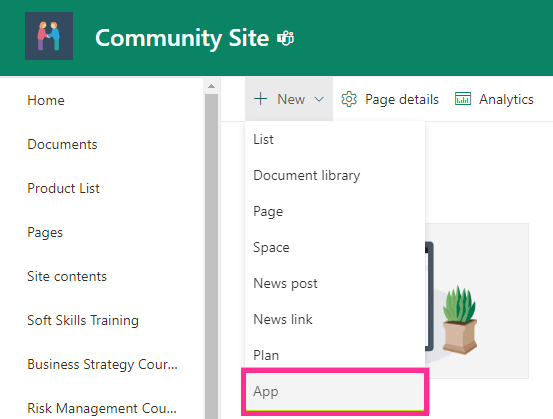
To install Alerts and Reminders by Virto to your SharePoint site, go to the site you’d like to add it to and click “New.” Then select “App” from the drop-down menu.
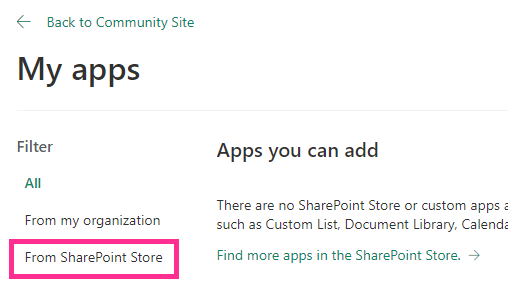
Choose “From SharePoint Store” and click “Find more apps in the SharePoint Store.” Search for Alerts and Reminders by Virto.
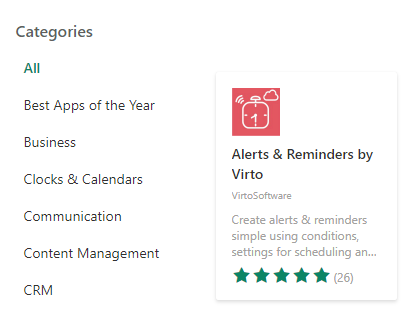
Find the Alerts and Reminders by Virto app and click on it.
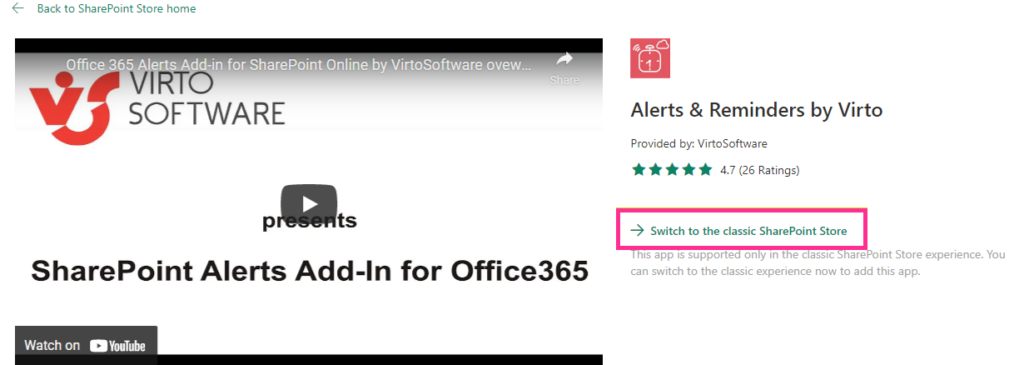
Switch to the classic SharePoint mode.
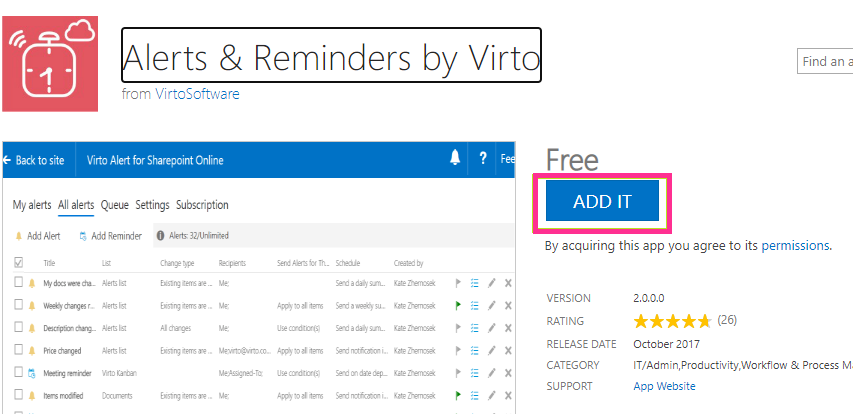
Click “Add it.”
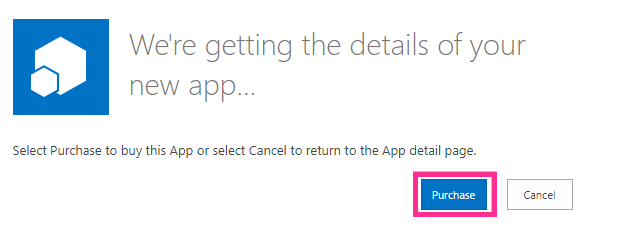
Click “Continue” and “Purchase.”
Clicking “Purchase” does not mean you will be charged for the product. This wording is a default Microsoft Store setting we cannot change. You can still use the 30-day trial on your site for free.
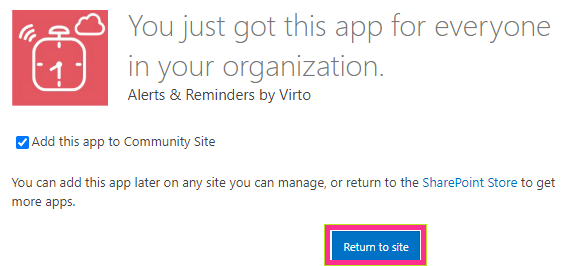
Then return to the SharePoint site.
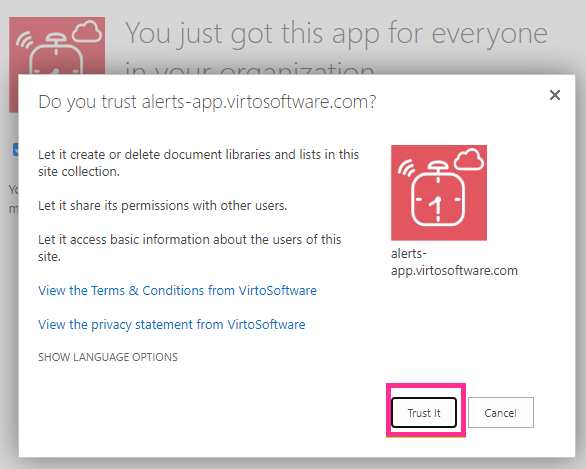
Confirm you trust the app.
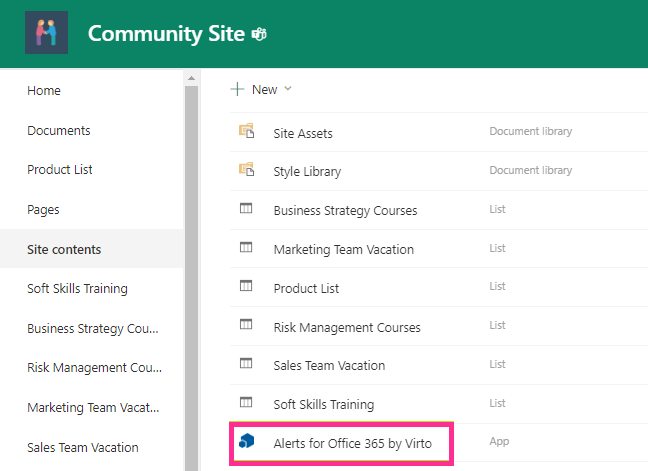
The Alerts and Reminders app will appear in the site contents as an installed app. Click the SharePoint alerts icon to start working.