Wiki Page
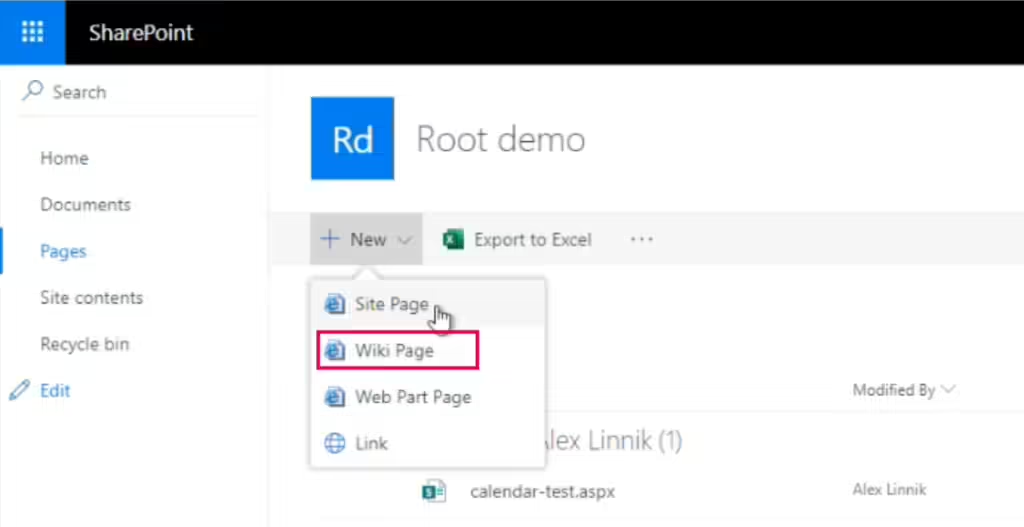
Click "+New" and select "Wiki Page."
Give your page a name and click "Create".

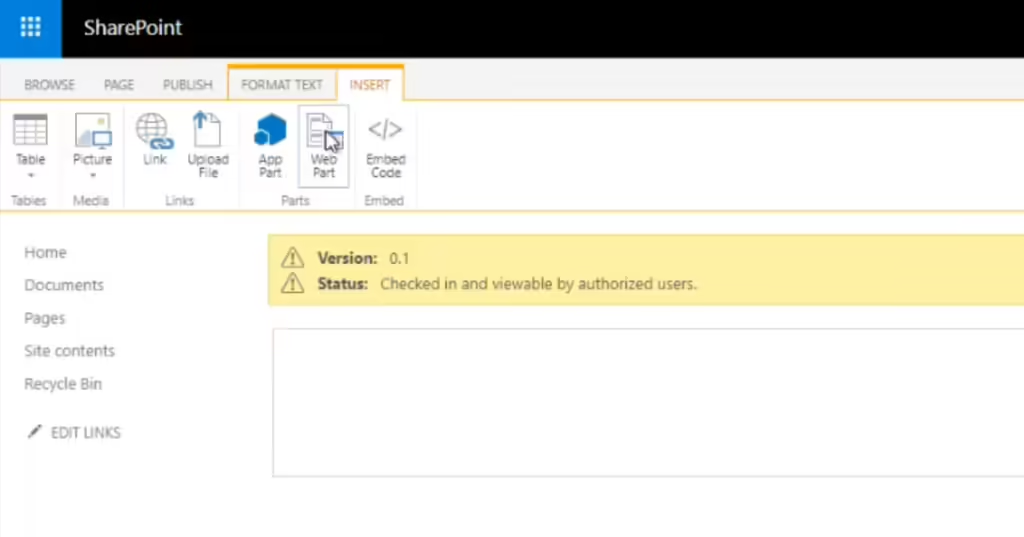
In the "Insert" tab, find and click the "Web Part" icon.
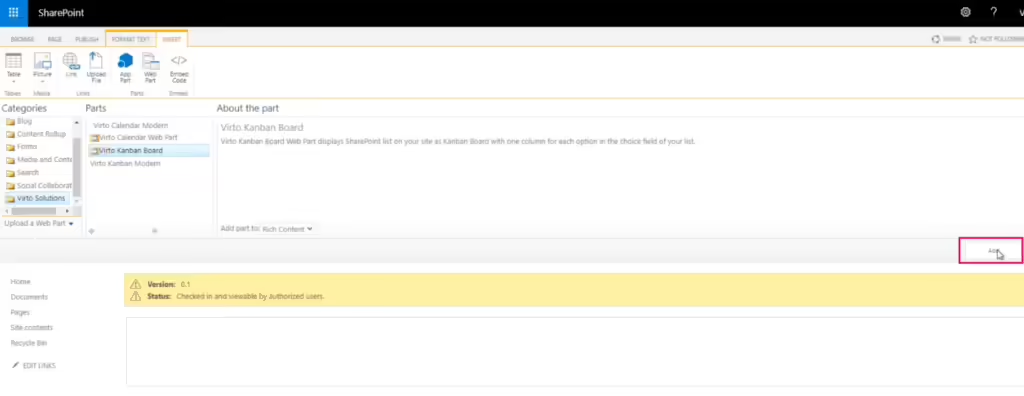
In the Categories section, locate and click the "Virto Solutions" folder, then select "Virto Kanban Board" and click "Add."
Click "Save" in the upper right corner.
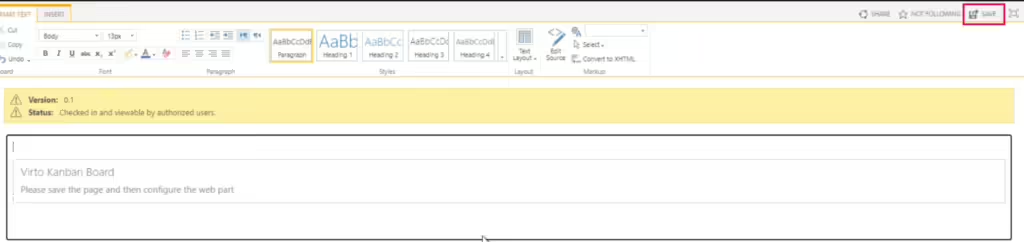
Your Virto Kanban board is now ready to use.
Web Part Page
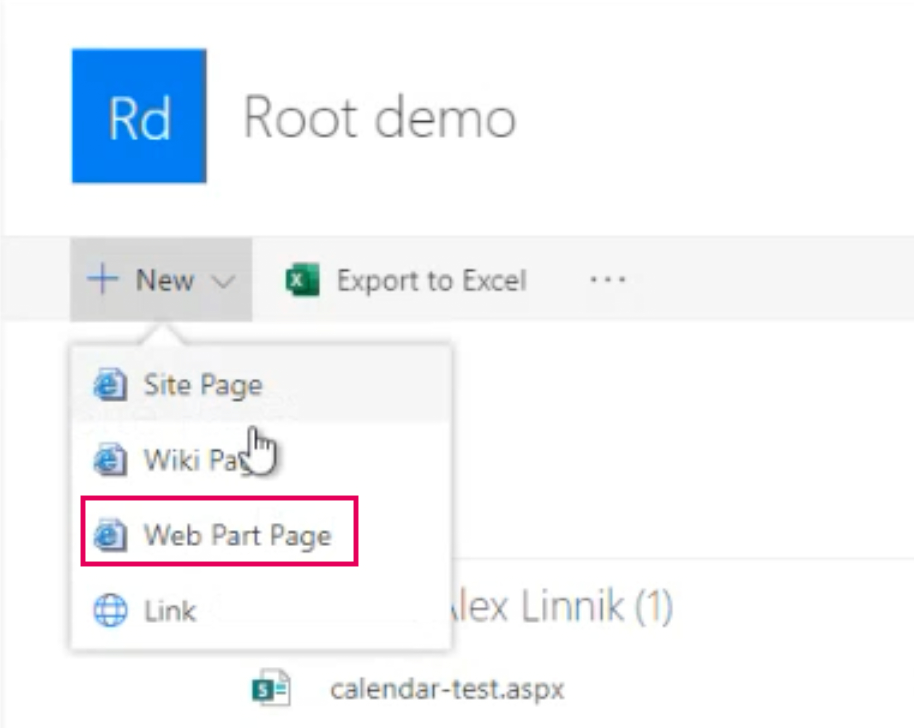
Click "+New" and select "Web Part Page."
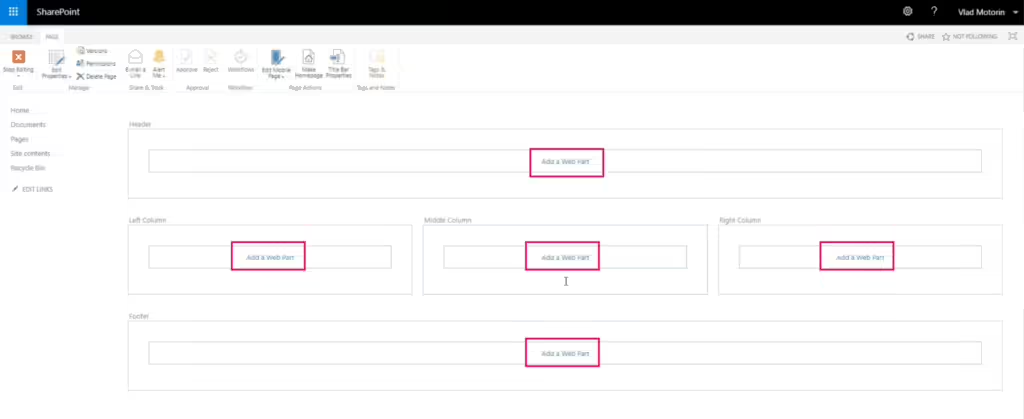
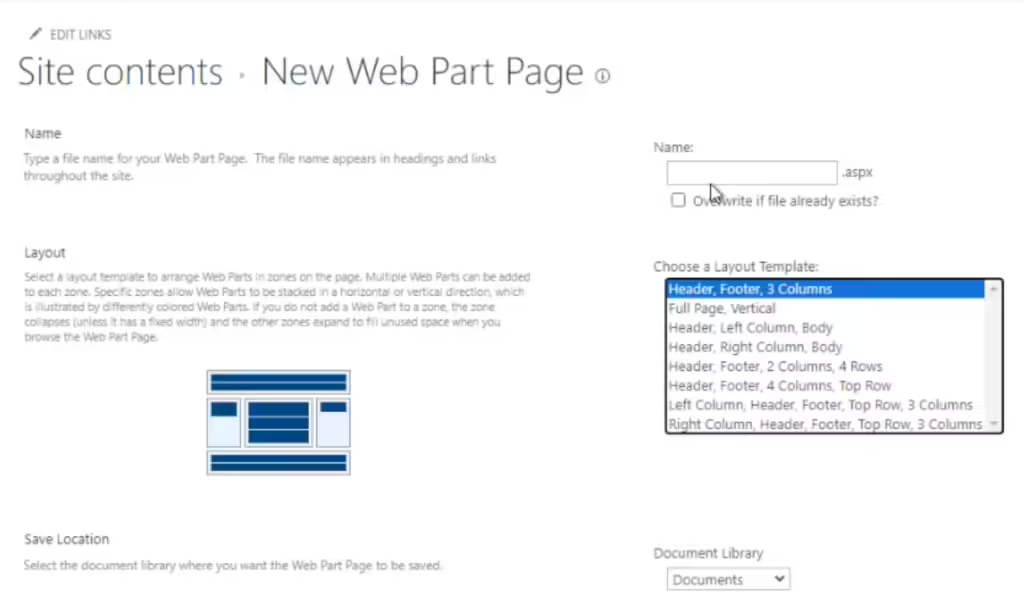
Enter the name of your page, choose a layout, and select the location where you want the Web Part Page to be saved.
Add your web part to any available location within the chosen template. Simply click "Add a Web Part" and follow the same two last steps described for a "Wiki Page."